
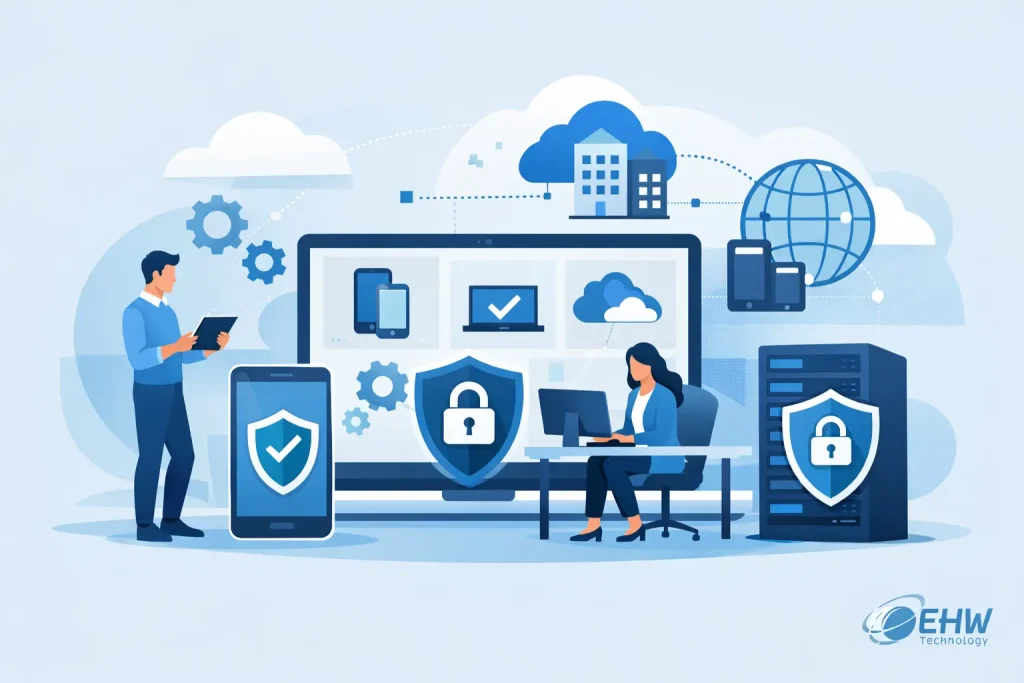
A new laptop should not arrive with a dozen manual setup jobs attached to it. Yet for many businesses, every new starter means installing software, chasing updates, setting up email, checking security settings and hoping nothing has been missed. Microsoft Intune device management replaces that inconsistent process with a controlled way to prepare, secure and support business devices wherever staff work.
For Mackay and regional Queensland businesses, this matters because work no longer stays inside one office. Staff may move between sites, work from home, travel to customers or use mobile devices in the field. The device still needs to be protected, connected and ready to work – without creating more administration for managers or internal IT teams.
What Microsoft Intune Device Management Does
Microsoft Intune is a cloud-based service that manages company devices and the apps used on them. It gives a business a central place to apply settings, deploy approved software, enforce security requirements and respond when a device is lost, replaced or no longer needed.
It can manage Windows PCs, laptops, Apple Macs, iPhones, iPads and Android devices. The exact approach depends on the device, ownership model and how your people work. A company-issued laptop used for accounting requires different controls from a personal mobile used only to access email.
Rather than relying on staff to configure devices correctly, Intune can apply the right policies automatically. That might include encryption, screen-lock requirements, operating system updates, antivirus settings, Wi-Fi profiles, VPN access and approved applications. The aim is not to make work harder. It is to reduce preventable support issues and give the business clearer control over its technology.
Why Device Management Is Now a Business Requirement
A device is often the front door to company data. Email, customer records, cloud files, accounting systems and internal applications are all commonly accessed through laptops and mobiles. If a device has weak passwords, missed updates or no encryption, one lost laptop can become more than a hardware replacement cost.
The risk is also operational. An employee who cannot access their required applications on day one loses time. A field worker with an out-of-date mobile app may be unable to complete a job. A departing staff member with business data on a personal mobile creates an uncomfortable offboarding task.
Microsoft Intune helps bring these situations under control. It allows businesses to establish a baseline for devices, monitor whether that baseline is being met and take action when it is not. This supports day-to-day productivity as well as cyber security planning.
For smaller businesses, the value is often consistency. There may not be a dedicated IT person available to prepare every computer or investigate why a machine has stopped receiving updates. For larger organisations, Intune can provide visibility across a growing fleet of devices and sites without requiring every task to be handled onsite.
Start With Your Devices, People and Data
The best Intune setup starts with practical questions, not a generic policy template. Which devices are business-owned? Which staff need access to sensitive information? Are personal mobiles permitted for email? Do staff work remotely, from multiple offices or from customer locations? Which systems must be available, and which data should never leave a managed device?
This assessment determines how strict the policies should be. A business that issues standard Windows laptops to every staff member can apply a more consistent configuration than a business with a mix of personal devices. Neither model is automatically right or wrong. The important part is knowing where company data sits and setting sensible rules around it.
For example, a business may allow staff to use personal mobiles for Outlook and Teams but prevent company data being copied into personal apps. Another may require all company laptops to use encryption, multifactor authentication and automatic updates before accessing Microsoft 365. These are different controls for different risks.
Trying to apply enterprise-level restrictions to every small business can frustrate staff and increase support requests. Being too relaxed, however, leaves information exposed. A tailored configuration finds the workable middle ground.
Set a Secure Standard for Every Device
Once the device strategy is clear, Intune can apply the settings that should be present across the organisation. This creates a minimum security standard without asking every staff member to become an IT expert.
A sensible baseline commonly covers these areas:
- Encryption for laptops and mobile devices that store or access business data.
- Password, PIN and screen-lock rules that protect unattended devices.
- Operating system, application and security updates to reduce known vulnerabilities.
- Antivirus and endpoint protection settings for supported devices.
- Multifactor authentication and conditional access requirements for Microsoft 365 services.
- Restrictions on risky actions, such as installing unapproved software or copying data into unmanaged apps.
The settings should match the business rather than simply being switched on because they are available. A workshop PC shared by several staff, for instance, needs a different sign-in and application model from a director’s laptop that travels regularly. The same is true for devices used in retail, health, construction, professional services or field operations.
Make New Devices Ready From the Start
Device rollout is where Microsoft Intune device management can save significant time. With Windows Autopilot and Intune, a new eligible computer can be assigned to a staff member, then configured during its first setup. The user signs in with their work account and receives the required settings, security controls and applications.
This reduces the need to manually build each computer at a desk before handing it over. It is particularly useful when staff are in different locations or when new equipment needs to go directly to a remote employee.
Applications can also be deployed based on role. An office administrator may receive Microsoft 365 apps, accounting software and a document management tool. A technician may receive field-service software, secure remote access and mobile device utilities. Keeping this role-based approach tidy makes future support easier and limits unnecessary software across the fleet.
There are limits to consider. Older specialised programs may not deploy cleanly through cloud management, and some site-specific applications need local configuration. A staged rollout is usually safer than changing every device at once, especially where business-critical software is involved.
Support Remote Work Without Losing Control
Remote and hybrid work does not have to mean unmanaged work. Intune gives IT administrators a clearer picture of enrolled devices, their compliance status and the applications installed on them. If a device is not meeting the required standard, access to selected business services can be restricted until the issue is corrected.
This is useful when a laptop has missed updates, encryption has been disabled or security software is not reporting correctly. Instead of finding out after an incident, the business can identify the problem earlier and guide the user through the fix.
For lost or stolen devices, Intune can help protect company information by removing business data or resetting a company-owned device where appropriate. The action taken should reflect the ownership model. Wiping an entire company laptop may be appropriate; wiping a staff member’s personal mobile generally is not. On personally owned devices, application-level protection can often remove company information while leaving personal photos, messages and apps alone.
Connect Intune to the Rest of Your IT Environment
Intune works best as part of a broader managed environment, not as an isolated tool. It can support Microsoft 365 security, identity management, endpoint protection, backup planning and helpdesk processes. When these services are aligned, staff have fewer workarounds and managers have fewer gaps to worry about.
Consider a new employee onboarding process. Their account is created, their computer is assigned, required programs are installed, email is configured and access is granted according to their role. When they leave, access can be removed and the device prepared for its next user. This is cleaner, faster and more reliable than relying on checklists spread across emails and spreadsheets.
EHW Technology can help businesses assess their existing devices, design appropriate Intune policies, enrol hardware and provide ongoing support when staff need assistance. That support can sit alongside Microsoft 365, cloud services, cyber security, connectivity and device repairs, so there is less need to coordinate multiple providers.
Avoid the Common Rollout Mistakes
The most common problem is treating Intune as a switch that can be turned on without planning. If devices are enrolled without clear ownership records, approved application lists or communication with staff, the result can be confusion rather than better control.
Another issue is overlooking legacy devices. Not every older PC, mobile or operating system will be suitable for modern management and security requirements. In some cases, an upgrade is the more cost-effective decision than attempting to maintain outdated hardware.
Staff communication also matters. People are more likely to accept device controls when they understand what is being managed, why it is necessary and how it affects their personal information. Clear boundaries are especially important for bring-your-own-device arrangements.
A practical rollout normally begins with a small group, tests the essential policies and applications, then expands in stages. This gives the business time to resolve exceptions without disrupting every employee at once.
The right device management setup should make security and support feel less visible, not more burdensome. When people can start work on a properly configured device, access what they need and receive help quickly when something changes, the technology is doing its job.